Softphone integration with Salesforce enables businesses to enhance agent efficiency, improve customer interactions, and optimize workflows. If you’re a beginner looking to integrate these two systems, this guide will walk you through the setup process step by step.
What is Softphone & why Integrate with Salesforce?
A softphone is a software-based phone that allows users to make and receive calls over the internet using VoIP (Voice over Internet Protocol) technology. When integrated with Salesforce, softphones enable agents to manage calls directly within the CRM, access customer data in real time, and automate call logging.
Key Benefits of Softphone Integrating with Salesforce

Call us and Integrate Today!
How to Set Up Softphone Integration with Salesforce (Step-by-Step Guide)
Step 1: Choose a Compatible Softphone Provider
To get started, select a softphone provider that supports Salesforce integration. Some popular options include:
👉 Amazon Connect
👉 RingCentral
👉 Five9
👉 Vonage
👉 JustCall
Here, we are going to use “JustCall”
Step 2: Install the Softphone App in Salesforce
- Log in to Salesforce and then go to AppExchange.
- Search for your softphone(JustCall) provider’s integration application.
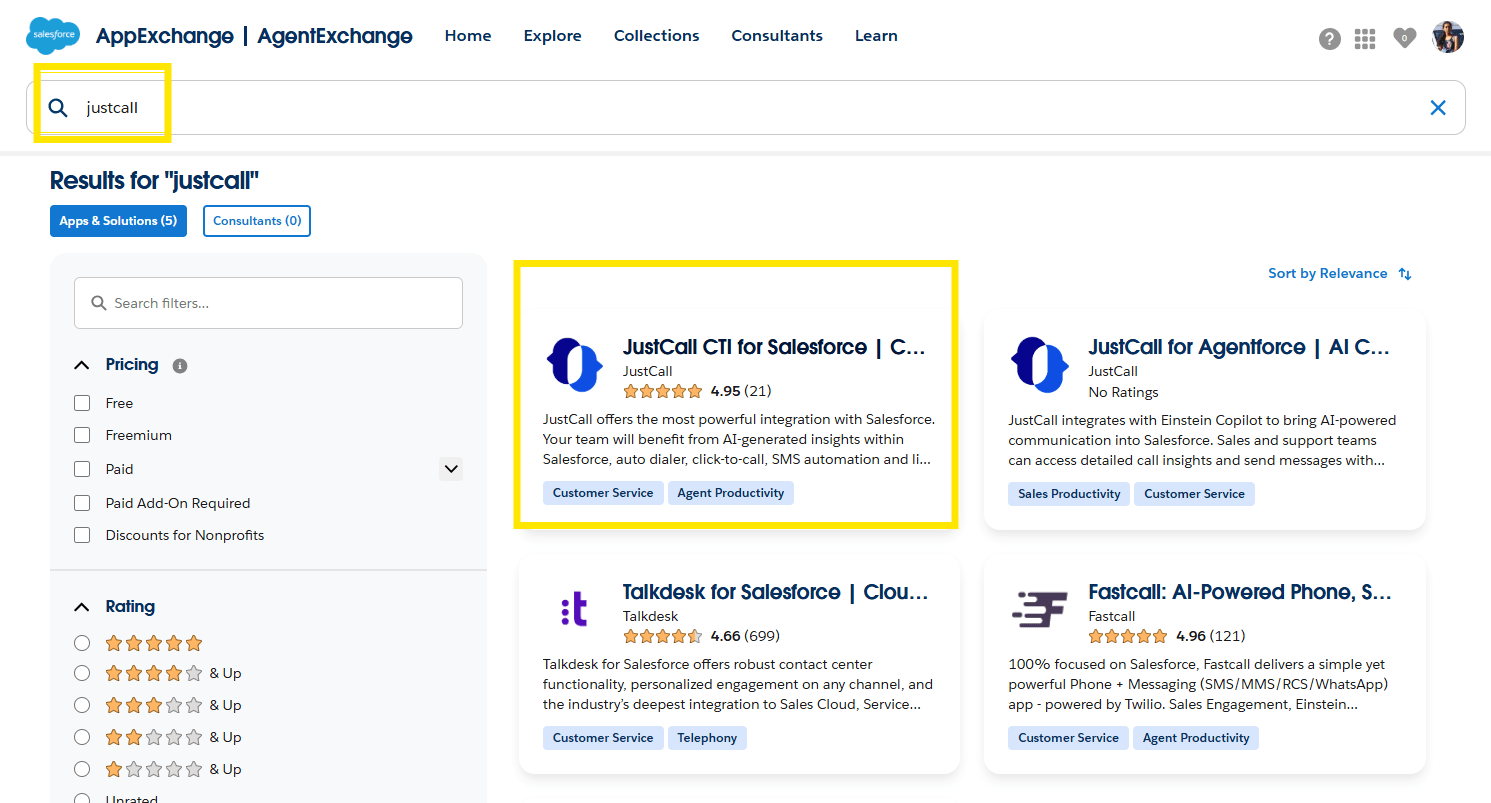
3. Click Install and follow the on-screen instructions.
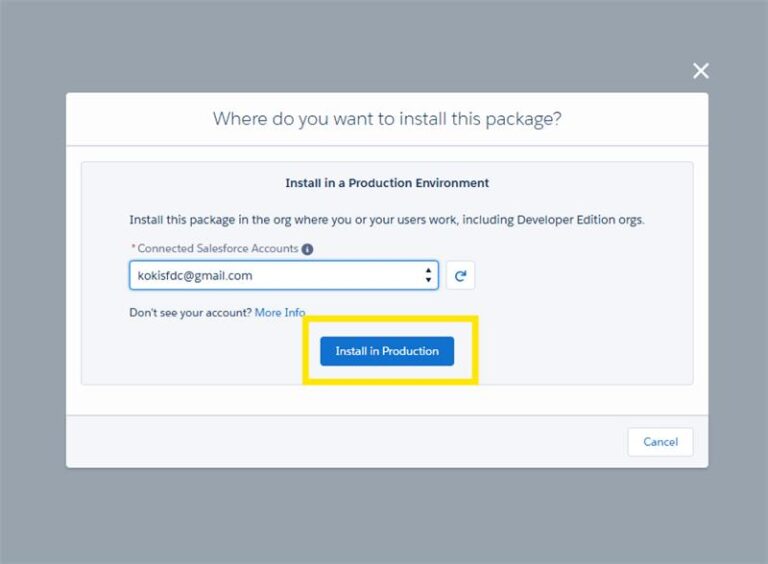
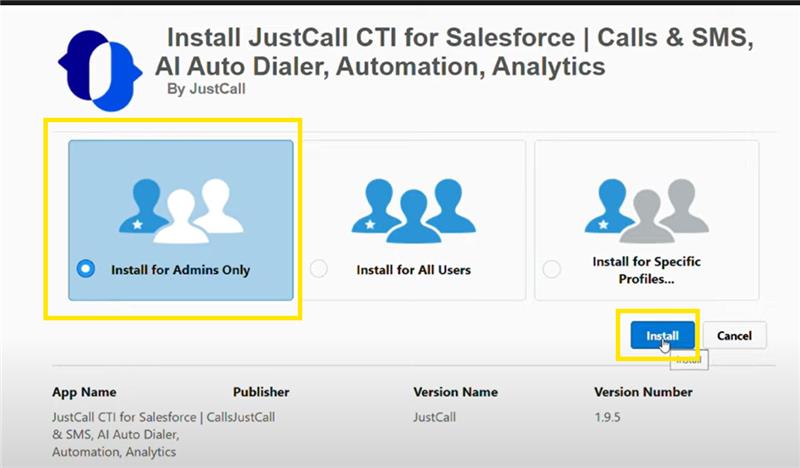
4. Assign Licenses as required.
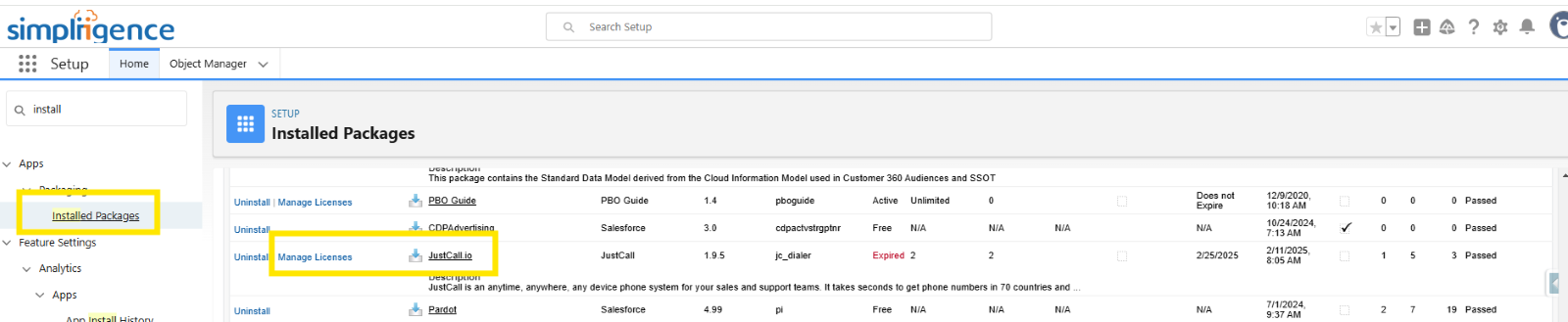

Step 3: Configure Open CTI (Computer Telephony Integration)
- Navigate to Salesforce Setup.
- Search for Call Centres and add/assign a user who will access the call centre.
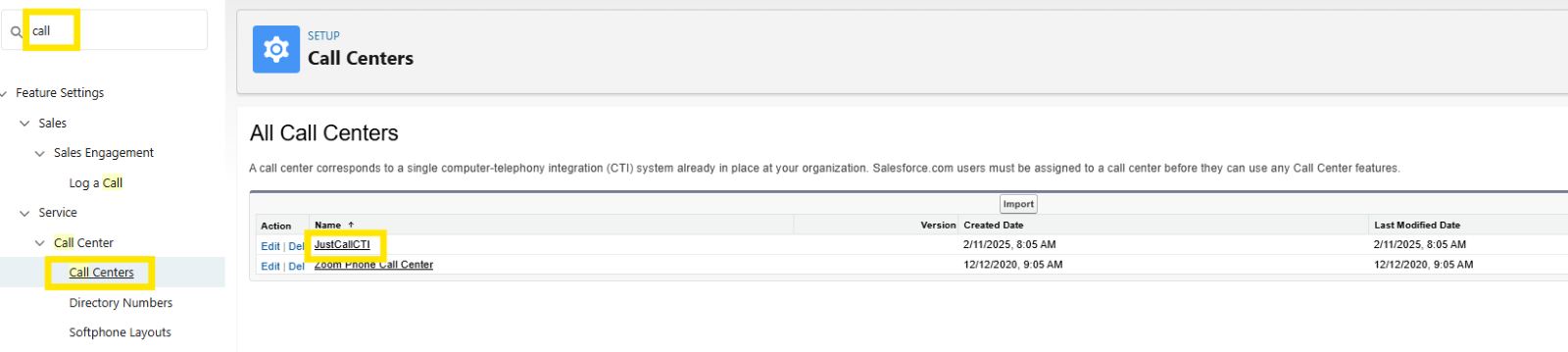
3. Save the settings.
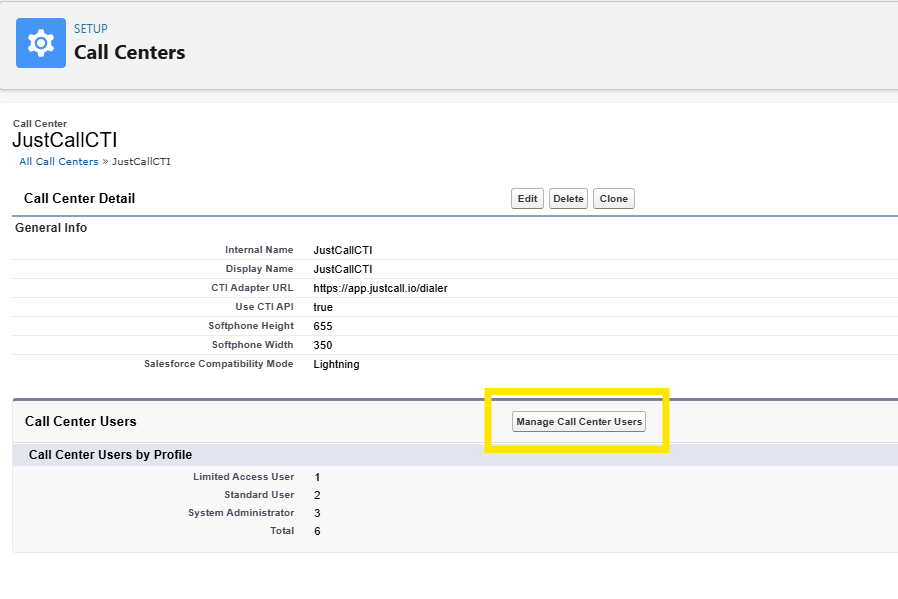
Step 4: Connect Your Softphone to Salesforce
- Open the Softphone(JustCall) Settings in Salesforce App Launcher.
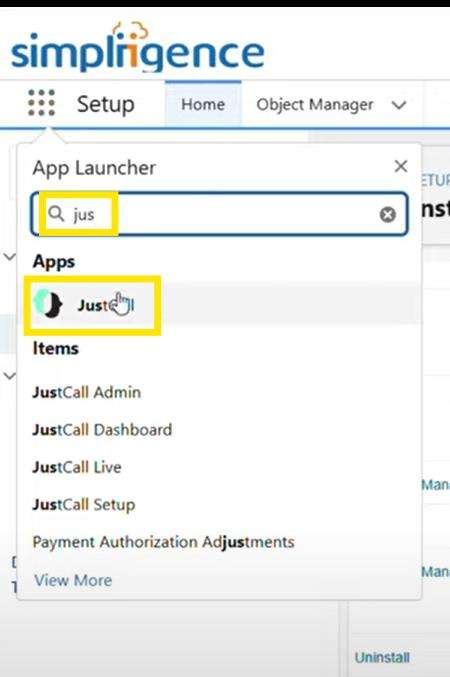
2. Authenticate using your VoIP provider’s credentials.
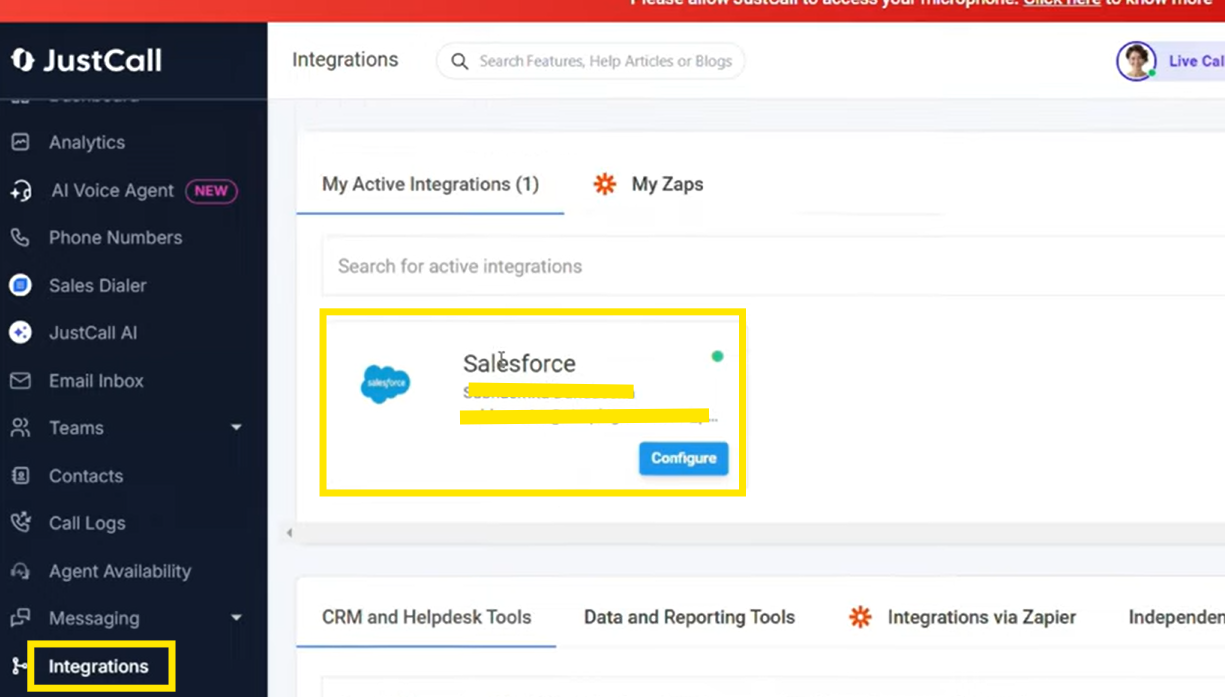
3. Here we are already connected, so it is showing as re–connect, but for the first time when you integrate, it will show you the “Connect” button. You must click that to go further.
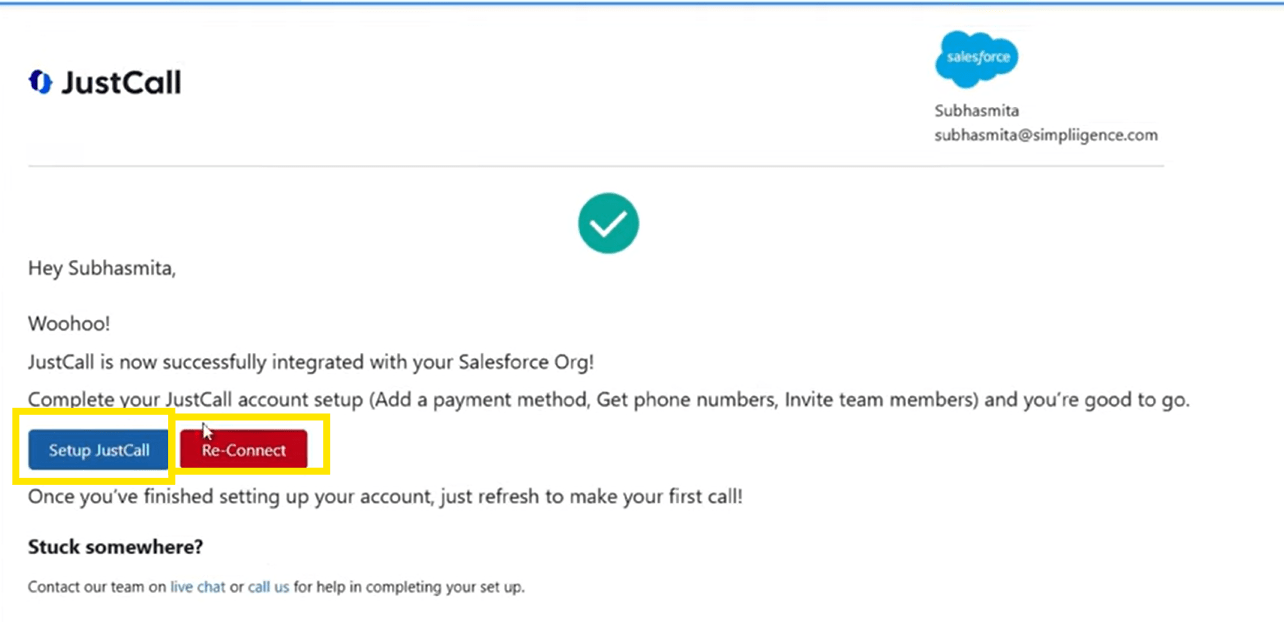
4. After you click connect, it will redirect you to the JustCall app, where you must configure the Salesforce
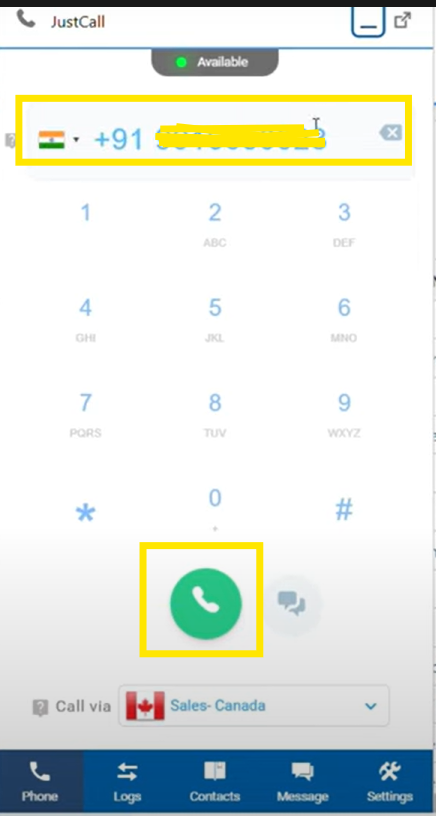
5. Test the integration by making a test call.

Step 5: Customize Call Workflows and Automations
- Set up Click-to-Call functionality for easy outbound calling.
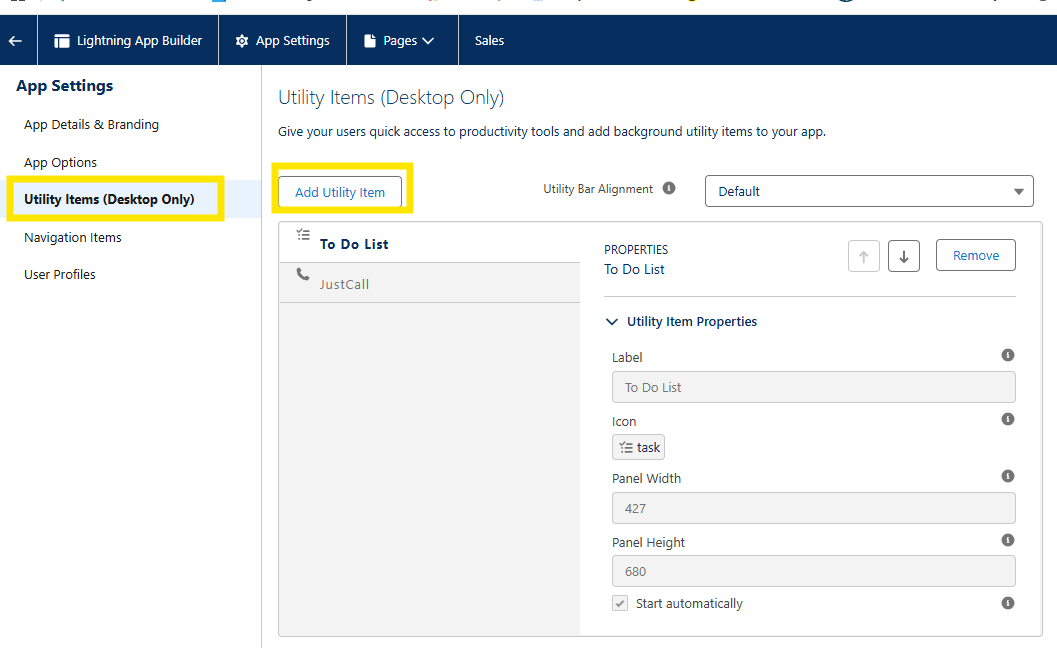
- To bring this button, go to setup > app manager > select the app that we need to enable the softphone. Add it to the utility bar
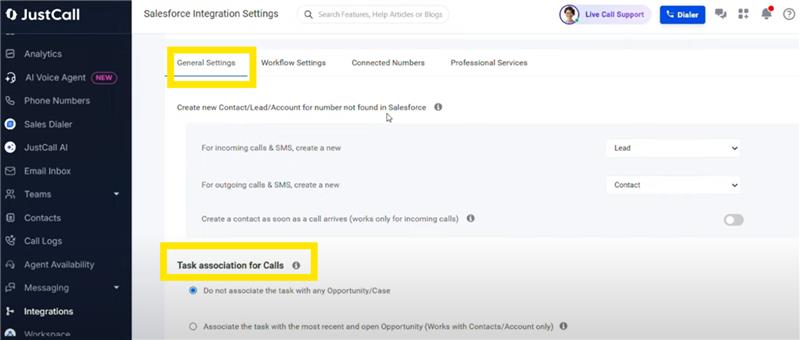
3. Enable Automatic Call Logging to store call details in customer records.
Best Practices for a Smooth Integration
- Ensure a Strong Internet Connection – VoIP calls require stable connectivity.
- Train Agents on Softphone Features – Help them utilize call transfer, recording, and other key functions.
- Monitor Call Analytics in Salesforce – Track performance metrics and optimize call handling.
Why choose Simpliigence for Salesforce Softphone Integration?
Integrating a softphone with Salesforce can significantly enhance your customer service operations by improving efficiency and streamlining communication. By following this step-by-step guide, beginners can set up and start using softphone integration with ease.
Frequently Asked Questions
What is a softphone integration with Salesforce?
It connects a cloud calling system to Salesforce so your team can handle and log customer calls right inside the CRM, with the customer’s context in front of them.
What are the benefits of connecting a softphone to Salesforce?
Your team can make and take calls, see customer information as they talk, log activity automatically, and get clearer visibility into every interaction, all without leaving Salesforce.
How do you set up a softphone integration in Salesforce?
It depends on your telephony provider, but the shape is consistent: configure the phone app, connect it to Salesforce, set permissions, set up call features, and test call logging before you roll it out.
Which softphone providers can integrate with Salesforce?
Salesforce works with many telephony and contact-center providers. The right one comes down to the calling features you need, Salesforce compatibility, coverage, and price.