QuickBooks Migration & Integration – What SMBs Need to Know!
If you’re currently using QuickBooks Desktop, you might be wondering: Should I migrate to
Read More about QuickBooks Migration & Integration – What SMBs Need to Know!
Integrating Salesforce with QuickBooks Online can streamline your business processes by syncing financial data with customer relationship management (CRM) systems. This integration ensures seamless data flow between sales, billing, and accounting teams. In this blog, we’ll walk through the steps to set up this integration, common challenges, and solutions.
Need help? Connect for Quick Demo!
When you integrate Salesforce and QuickBooks Online, you eliminate the need for double data entry, reduce errors, and improve the efficiency of your operations. Here’s why you should consider this integration:
Unified Data: Automate the syncing of customer data, invoices, payments, and more.
Improved Efficiency: Save time by eliminating manual data entry between Salesforce and QuickBooks.
Accurate Financial Reports: Get real-time access to your financial information in QuickBooks Online directly from your Salesforce dashboard.
Integrating these two powerful tools may seem like a complex task, but with the right steps, it becomes easier. Here’s how you can integrate QuickBooks Online with Salesforce.
There are several third-party integration tools available that can help you connect Salesforce and QuickBooks Online. Here are a few popular options:
DBSync: A widely used integration platform that syncs data between Salesforce and QuickBooks.
Workato: A platform that helps automate data syncs between Salesforce and
QuickBooks.
Zapier: A user-friendly automation platform to connect Salesforce and QuickBooks Online with customizable workflows.
In this blog, “Zapier” will be used as the integration tool. Let’s see how to set it up and utilize it effectively!
Choose an integration tool that suits your needs and budget
After selecting an integration tool, install it according to the instructions provided by the tool’s documentation.
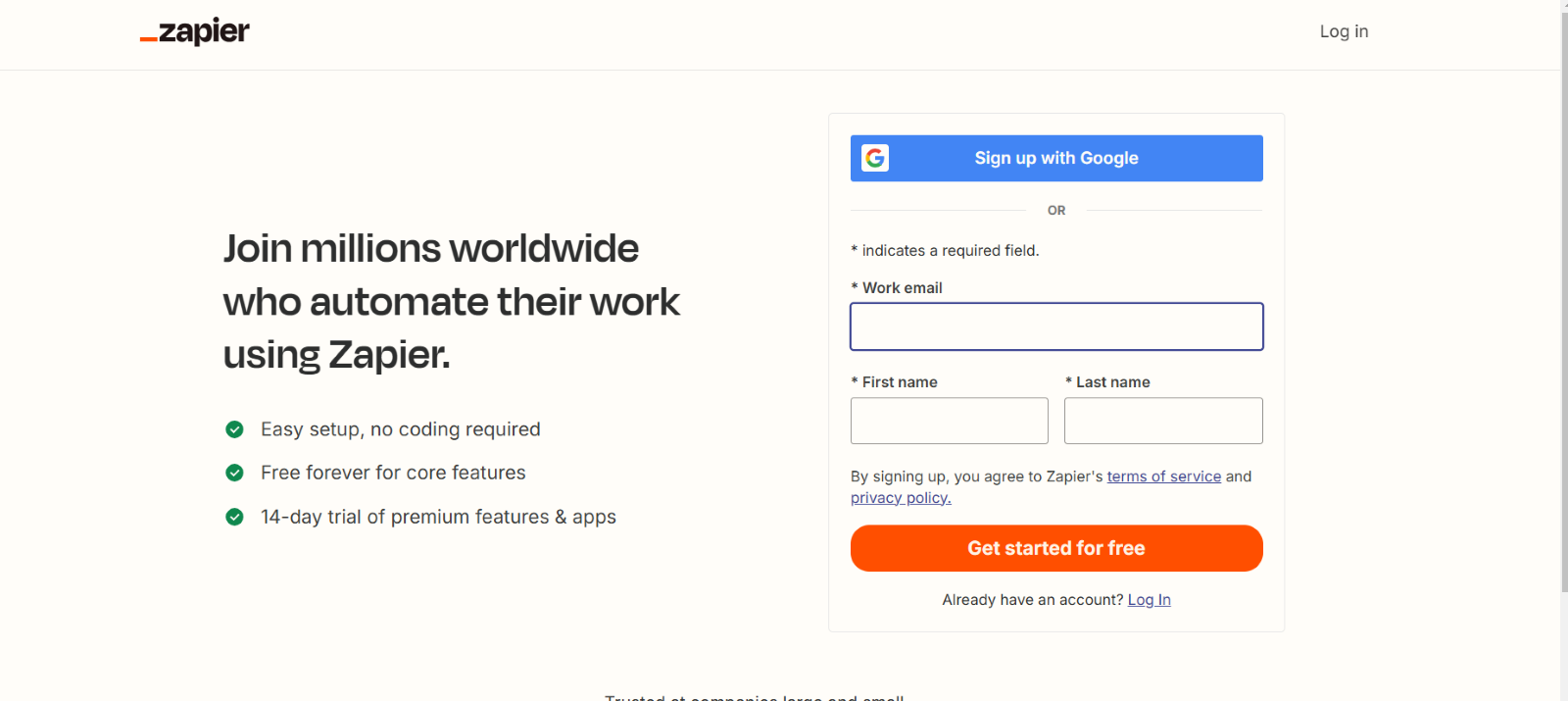
1. For Zapier : Sign up for a Zapier account at Zapier’s website.
2. Set up a zap by selecting a trigger in salesforce and corresponding actions in quick books online

3. Search for Salesforce and QuickBooks Online integrations in the Zapier app directory.
4. Follow the provided step-by-step instructions to enable the integration.
Once you have your integration tool installed, you need to connect your Salesforce and QuickBooks Online accounts to the integration tool:
1. Log in to Salesforce:
Open your Salesforce account and navigate to the “App Launcher” or “Integration Settings.”
2. Log in to QuickBooks Online:
Open your QuickBooks Online application.
Go to the “Edit” menu, select “Preferences,” and ensure that the application allows access via third-party tools or APIs.
3. Authorize Access:
In the integration tool, log in with your Salesforce and QuickBooks Online credentials once you select create Zap .
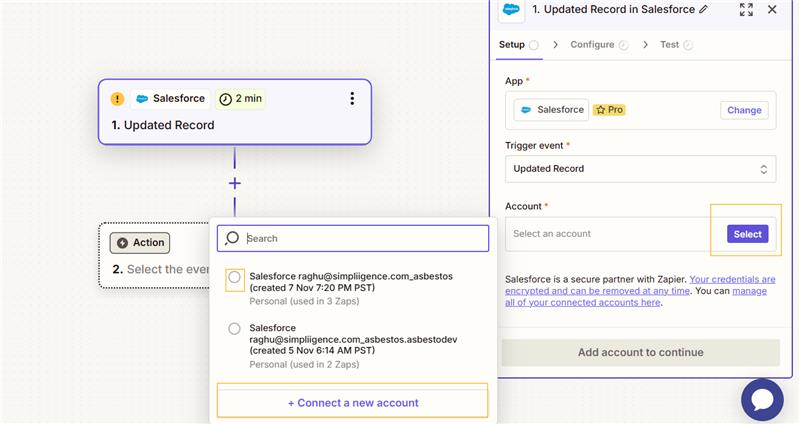
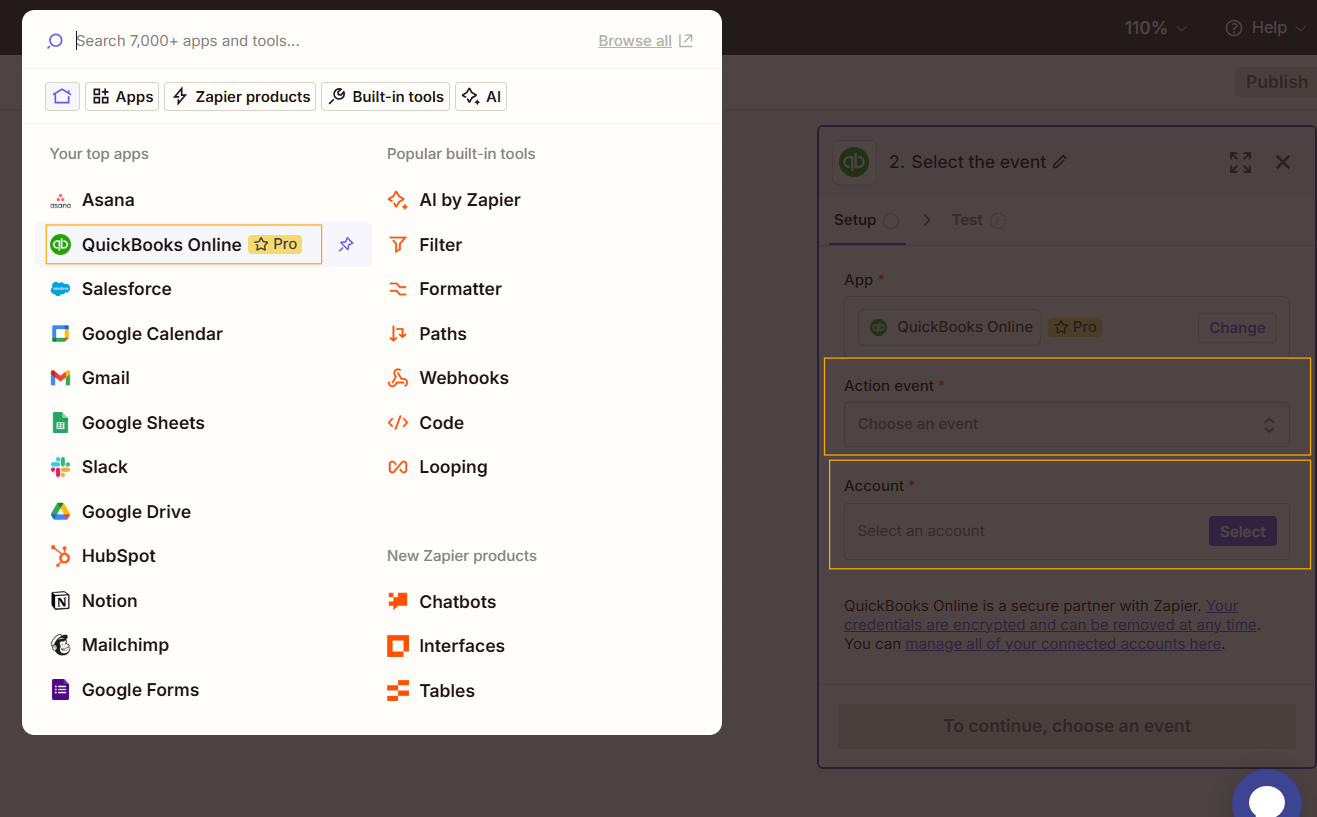
You will be prompted to allow the integration tool to access and sync data between the two platforms.
Mapping data fields is crucial for ensuring the correct transfer of information between Salesforce and QuickBooks Online. This step defines how the data should be synchronized between the two systems:
Customer Data: Ensure that fields like customer name, email, and contact details in Salesforce are linked to the corresponding fields in QuickBooks.
Invoices and Payments: Map the fields for invoices, payments, and credit notes between both platforms.
Opportunities and Accounts: Sync your Salesforce opportunities, accounts, and other relevant sales data with QuickBooks.
Each integration tool will provide a user-friendly interface to map these fields.
Configure how often and what type of data should be synced. Here are some options to consider:
Real-Time Sync: Every time an update occurs in Salesforce or QuickBooks, it will be reflected immediately.
Scheduled Sync: Set a specific time (e.g., daily or weekly) for data synchronization.
Make sure to choose a syncing frequency that fits your business needs.
After setting up the integration, it’s crucial to test the sync process to ensure everything is working correctly:
1. Perform Test Sync:
2. Check for Errors:
Look for any discrepancies or missing data between the two platforms.
Once the integration is up and running, continue to monitor it regularly to ensure the data flows smoothly between Salesforce and QuickBooks Online:
Regular monitoring ensures that any issues are addressed quickly and that both systems remain synchronized.
By following these simple steps, you can integrate Salesforce with QuickBooks Online, leading to improved efficiency, reduced data entry errors, and better business insights. Proper configuration, mapping, and regular maintenance will ensure the integration continues to benefit your business in the long run.
Are you ready to simplify your workflow by integrating Salesforce with QuickBooks Online?
Connect with us Today and enhance your business operations!
Why should businesses integrate Salesforce with QuickBooks Online?
It connects your customer, sales, and financial information across both systems, so your team stops entering the same data twice and everyone works from consistent numbers.
What data can be synchronized between Salesforce and QuickBooks Online?
Depending on the solution, customers, products, invoices, payments, sales orders, and other records. Sync what your process actually needs, not everything by default.
How do you integrate Salesforce with QuickBooks Online?
Through an integration app, middleware, or a custom API build, chosen for the data flows, automation, and security your business requires.
What are the common challenges when integrating Salesforce with QuickBooks Online?
Data mapping, duplicates, sync timing, error handling, authentication, model differences, and deciding the source of truth. Settling those upfront keeps the sync clean.
If you’re currently using QuickBooks Desktop, you might be wondering: Should I migrate to
Read More about QuickBooks Migration & Integration – What SMBs Need to Know!Choosing the right accounting software is crucial for small and medium-sized businesses (SMBs). QuickBooks
Read More about QuickBooks Online vs Desktop: Which Integration Is For You?Integrate Salesforce and QuickBooks to automate workflows, reduce errors, and save time. Simpliigence offers
Read More about Effortless Salesforce and QuickBooks Integration for SMBs